How can I personalize my outreach?
LeadSwift lets you automatically personalize every outreach.
When composing an email, simply click the "Insert Email Tags" dropdown for the available personalization tokens:
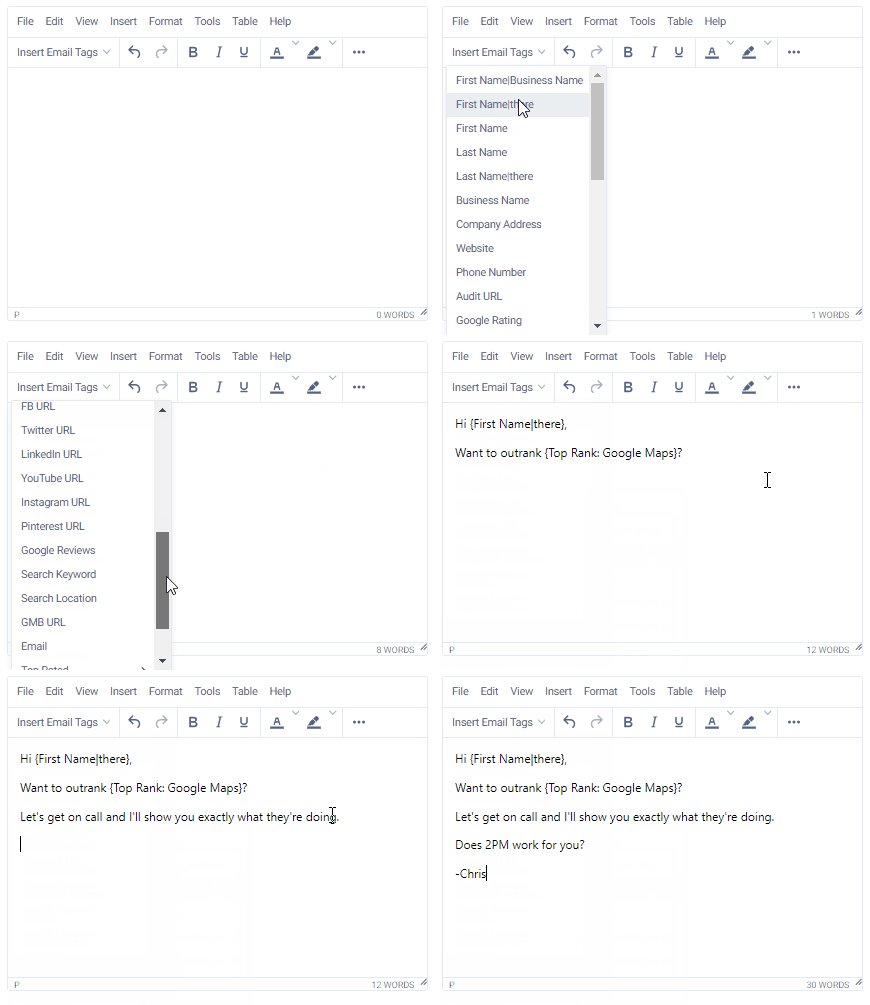
For example, if you select the "Business Name" email tag, we will insert {Business Name} into your email. When the emails are sent, the {Business Name} token will be replaced with the actual name of the business being contacted.
If you insert a tag like {Top Rated: Google Maps}, we will replace it with the highest rated business for the searched keyword. This is particularly useful for calling out the prospect's toughest competitor in an email, i.e. "{Top Rated: Google Maps}'s secret"
{Business Name}, the value will not be replaced and the recipient will receive (business name) literally
With our spintax feature, you can automatically rotate strings and tokens, each delimited by a vertical bar. For instance, entering {{RANDOM:Hi|Hello|Hey}} will rotate "Hi", "Hello" and "Hey". You can also use tokens within the spintax. With {{RANDOM:{Top Rated: Google Maps}|Your competiton}}, we will rotate between the prospect's top rated competitor on Google Maps and the text "Your competition".
Some tokens support fallback placeholders. For example, with {First Name|there}, we will replace the token with the prospect's first name if available. If we don't have it, it will be replaced it with the text you entered after the "|" delimiter. If you enter "Hi {First Name|there}" and the prospect's name is John, we will replace it with "Hi John". If we don't have the name, we will replace it with "Hi there". It is always recommended to use fallback placeholders where available. Without it, if the value is not available, the output will be blank, i.e. "Hi ".
Similarly, if using a token like {Google Rating}, you should set a filter for those with ratings and enable the "exclude null values" option. This way, you will only be using the {Google Rating} token with leads that actually have a Google rating.
The dynamic tokens can also be used in the subject. Simply insert the relevant token from the dropdown into the body. Then, cut and paste it into the subject.
If you are uploading your own lists to outreach, please refer to this article.
Adding preheader text
The preheader is the short line of preview text an inbox shows next to your subject line, before the recipient opens the email. Left empty, most inboxes will simply show the first words of your email — which is often a greeting and wastes the space.
To use:
1. Open a step in your sequence, or an email template
2. Enter your text in the Preheader field, above the email body
3. Save as normal
The preheader is hidden inside the email itself, so recipients only ever see it in their inbox list. Keep it short, and treat it as a second chance to earn the open rather than repeating your subject line.
You can confirm how it looks using the "Preview & test" button.
Adding a Loom video
A short personal video can make a cold email stand out. You can add a Loom video as a clickable preview image, without uploading anything.
To use:
1. Record your video in Loom and copy its share link (it looks like https://www.loom.com/share/...)
2. In the email editor, place your cursor where the video should appear
3. Press "Insert Loom video", paste the link, and confirm
LeadSwift adds the video's thumbnail with its title as a link. Clicking either opens the video in Loom. Videos are never attached to the email, so it stays small and deliverable.
Important: Make sure the video's sharing is set so anyone with the link can watch it. If Loom doesn't provide a thumbnail, a plain link to the video is inserted instead.